
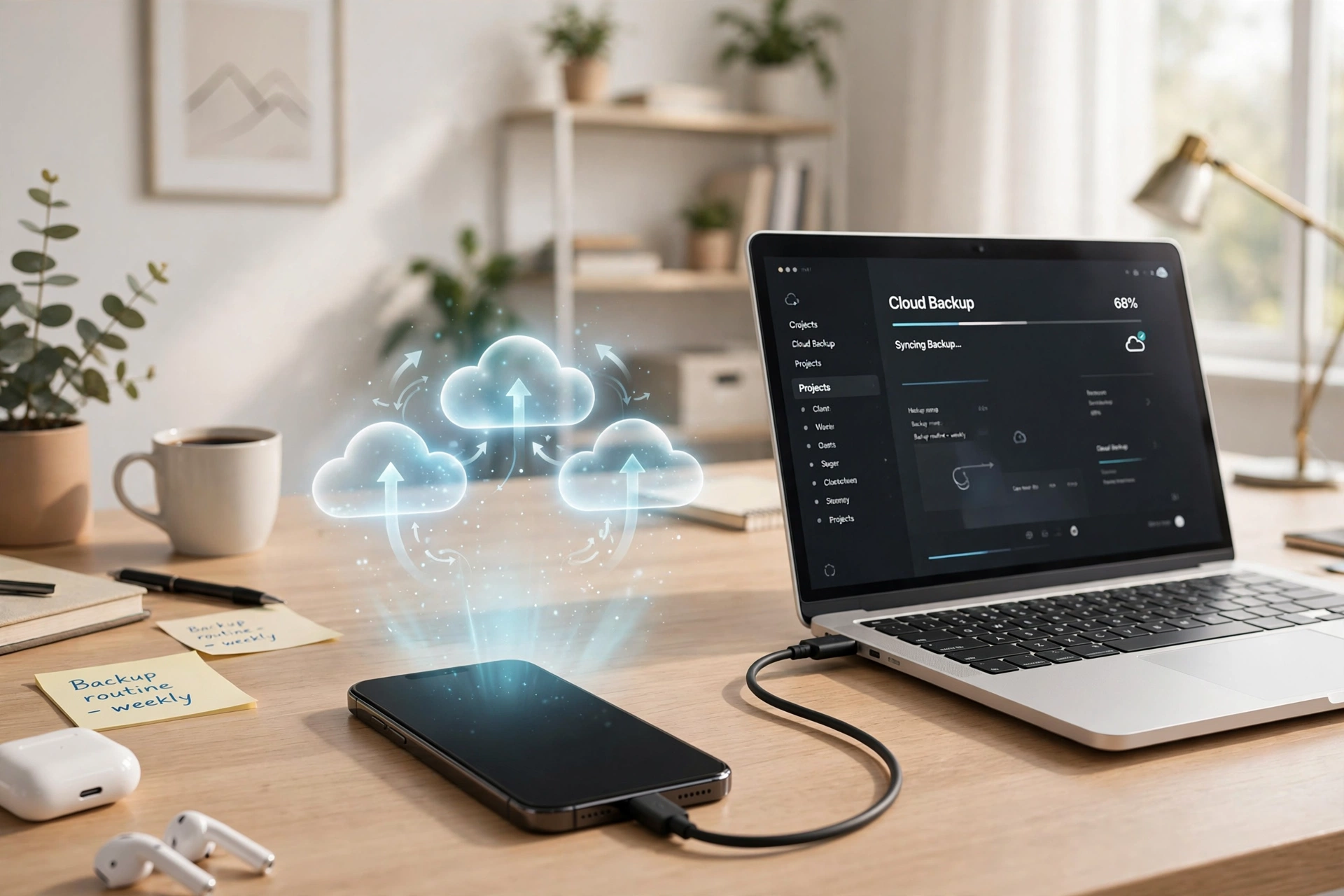
Most of us do not think about our phone’s data until it is gone. A cracked screen, a phone that slips into a lake, a botched update, or a thief in a crowded market — any of these can wipe out years of photos, messages, and documents in an afternoon. Backing up your phone takes a few minutes to set up, then runs on its own, and it is the single best insurance for your digital life — it costs nothing. This guide walks you through every major backup method for iPhone and Android, step by step, so you can get it done today.
Why Backing Up Your Phone Actually Matters
Think of a backup as a safety snapshot of everything on your phone. With a recent one, losing or breaking your device becomes an inconvenience: sign in on a replacement, tap restore, and your photos, chats, apps, and settings reappear. Phones are also more likely to be lost, dropped, or stolen on the road — running a full backup before your next international trip means your memories and documents survive even if the phone does not.
How to Back Up an iPhone with iCloud
iCloud backup is the easiest option for most iPhone owners: it runs automatically over Wi-Fi while your phone charges overnight. Here is how to set it up:
- Open Settings, tap your name, then iCloud > iCloud Backup.
- Turn on Back Up This iPhone.
- Tap Back Up Now to create your first backup immediately. Keep the phone on Wi-Fi and the charger until it finishes.
From now on, your iPhone backs itself up whenever it is plugged in, on Wi-Fi, and locked. Check the date of your most recent backup on the same screen every few weeks to confirm the automatic backups are actually happening.
One thing to plan for: Apple gives every account 5 GB of free iCloud storage, and a full phone backup usually needs more. You can upgrade to a paid iCloud+ plan, or reduce what gets backed up via Settings > your name > iCloud > Manage Account Storage > Backups, turning off large apps you do not need. Enabling iCloud Photos syncs your library separately and can keep backups smaller.
How to Back Up an iPhone to a Computer
To skip paid iCloud storage or keep a local copy you control, back up to a computer. On a Mac, use Finder; on Windows, use the free iTunes app or the newer Apple Devices app.
- Connect your iPhone with a cable and tap Trust This Computer.
- On a Mac, open Finder and select your iPhone in the sidebar. On Windows, open iTunes or Apple Devices and click the phone icon.
- Under the General tab, choose Back up all of the data on your iPhone to this Mac/PC.
- Check Encrypt local backup and set a memorable password — encrypted backups also save passwords, health data, and Wi-Fi settings, which unencrypted ones skip.
- Click Back Up Now and wait for the progress bar to finish.
A quick tip: these backups can take a while on the first run, especially over a slow USB connection — if your computer feels sluggish while it works, it may be worth learning how to speed up a slow laptop before your next session. Store the backup folder on a drive with plenty of free space, and repeat every couple of weeks.
How to Back Up an Android Phone with Google One
Most Android phones back themselves up to your Google account automatically — many people just never check it is switched on. To verify: open Settings > System (on Samsung, Accounts and backup, or search “backup”), tap Backup, make sure Backup by Google One is on, then tap Back up now to run one over Wi-Fi.
Google One backup covers apps and app data, call history, contacts, device settings, and SMS. Photos and videos are handled separately by Google Photos — open the app, tap your profile picture, then Photos settings > Backup, and make sure backup is enabled.
Google gives you 15 GB of free storage shared across Gmail, Drive, and Photos. If your backup and photo library outgrow that, upgrade to a Google One plan or free up space by clearing old emails and Drive files. Check the backup date in Settings occasionally — a backup that silently failed is the same as no backup at all.
How to Back Up an Android Phone to a Computer
For a local copy independent of Google’s servers, copy your Android’s files straight to a computer over USB:
- Connect your phone to the computer with a USB cable.
- On the phone, pull down the notification shade, tap the USB notification, and choose File transfer.
- On the computer, open the phone in the file browser and copy the folders you care about — DCIM (photos and videos), Pictures, Downloads, Documents, music, and voice recordings.
- Paste them into a clearly dated folder on your computer or an external hard drive, e.g. “Phone-Backup-October-2026”.
This manual method is simple and fast, but know its limits: it copies files, not app data, settings, or call history. It works best as a supplement to Google One backup — your photo and document safety net. Samsung owners get an extra option: Smart Switch, a free Windows/Mac app that creates a complete image of the phone, including settings and app data, over USB — the closest Android equivalent to an iPhone’s encrypted computer backup.
What Backups Save — and What They Don’t
Not every backup method protects everything, so it helps to know the fine print. As a general rule:
- iCloud and Google One backups save: apps and app data, settings, call history, SMS, contacts, and purchased content. They do not always include your full photo library — iCloud Photos and Google Photos handle that separately, so make sure those are switched on too.
- Encrypted iPhone computer backups save: nearly everything, including saved passwords, health data, and home settings. Unencrypted computer backups skip those sensitive items.
- Manual Android file copies save: only the files you copy. App data, settings, and call history are not included.
- Things no backup covers: files stored only inside apps that do not support backup, and anything deleted before the last backup ran. Banking and authenticator apps often need re-verification after a restore — move two-factor authentication to a cloud-synced app beforehand so you do not get locked out.
Backups can also protect your paperwork: a phone backup combined with photos of your passport and tickets will help keep your travel documents safe even when your luggage does not cooperate.
How Often Should You Back Up Your Phone?
The best backup is the one you never have to think about. Automatic cloud backups — iCloud Backup on iPhone, Google One on Android — are built for this: turn them on once, check occasionally, and let them run nightly. Run one extra manual backup before big events: buying a new phone, travelling, installing a major software update, or sending the phone in for repair. If you prefer computer backups, schedule them every one to two weeks and set a calendar reminder — a backup you keep postponing protects nothing.
How to Restore Your Phone from a Backup
When the day comes, restoring is straightforward. On a new or erased iPhone, the Transfer Your Apps & Data screen offers From iCloud Backup (over Wi-Fi) or From Mac or PC; sign in with your Apple ID, pick the most recent backup, and keep the phone plugged in until it finishes. On Android, sign in with the same Google account during setup, choose Restore from cloud, and select your old device’s backup — apps, settings, and data download automatically, with photos reappearing once Google Photos syncs. Large restores can take an hour or more.
The Bottom Line
Backing up your phone feels unimportant right up until it is the most important thing in the world. iPhone owners: enable iCloud Backup or make regular encrypted computer backups. Android owners: confirm Google One backup and Google Photos are both running. Once automatic backups are on, check the last-backup date monthly and run an extra one before trips, updates, and repairs. Fifteen minutes today buys back every photo and memory if your phone is ever lost, stolen, or broken — a trade no one should pass up.